
Introduction: Why USB Cable Connections Still Matter for Printers
Although wireless printing has become more common, many homes, offices, schools, and professional workplaces still rely on a wired printer connection.
A stable USB printer cable connection offers several advantages: reliable data transmission, simple setup, and fewer connection interruptions compared with wireless networks.
For users setting up a home office, students printing assignments, or businesses managing daily documents, knowing how to connect a printer to a laptop with a USB cable can save time and avoid unnecessary troubleshooting.
The process is usually straightforward:
A compatible cable connects the printer and laptop, the correct driver allows communication between devices, and the operating system completes the setup.
However, choosing the wrong cable can lead to common problems such as printer detection failure, slow data transfer, or unstable connections.
Understanding different USB printer cable types and their applications helps users build a more reliable printing system.

Understanding Different USB Printer Cable Types
Before connecting a printer to a laptop, it is important to understand that not all USB cables are designed for the same purpose.
Printers typically use several USB connection methods depending on the device generation and manufacturer design.
USB-A to USB-B Cable: The Traditional Printer Connection Standard
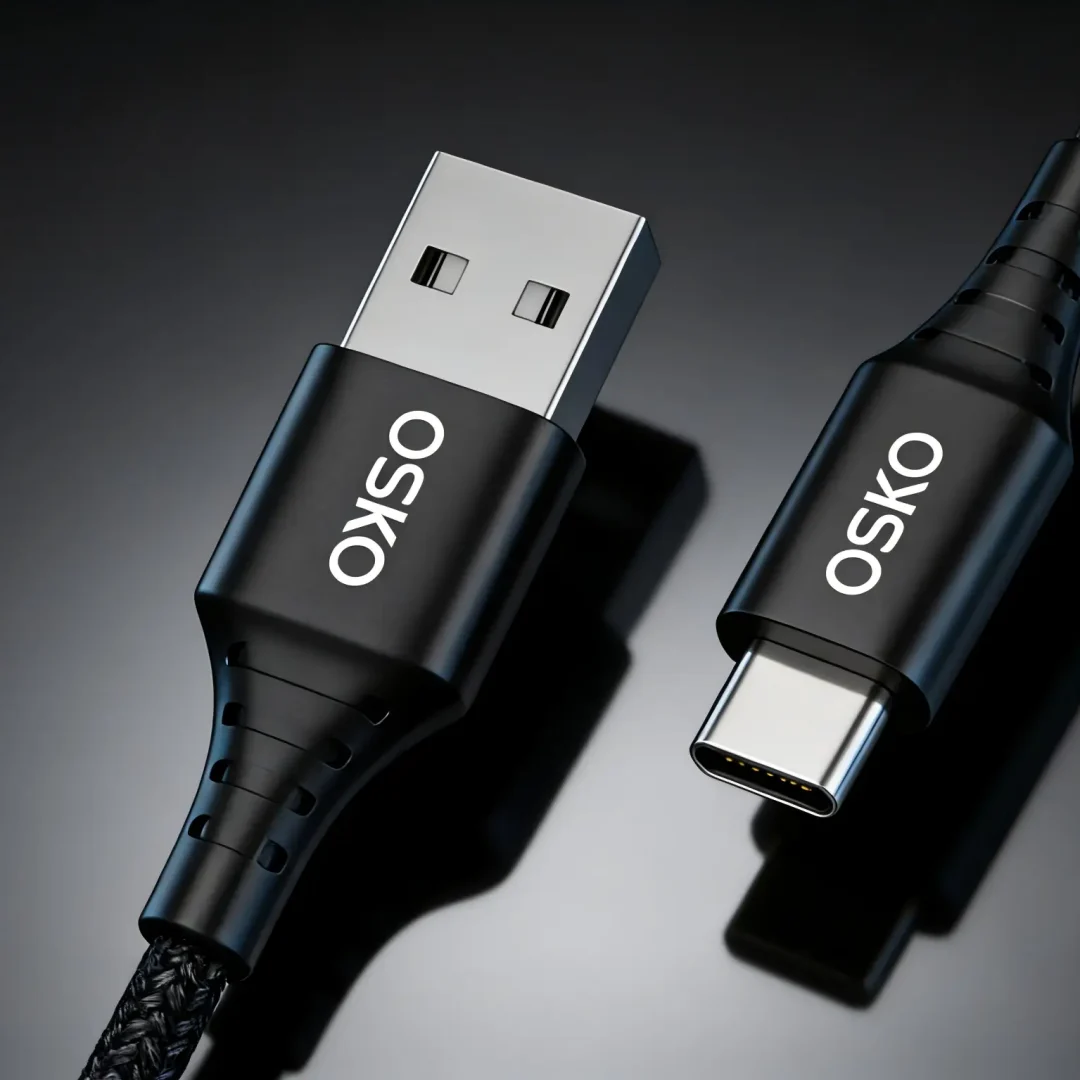
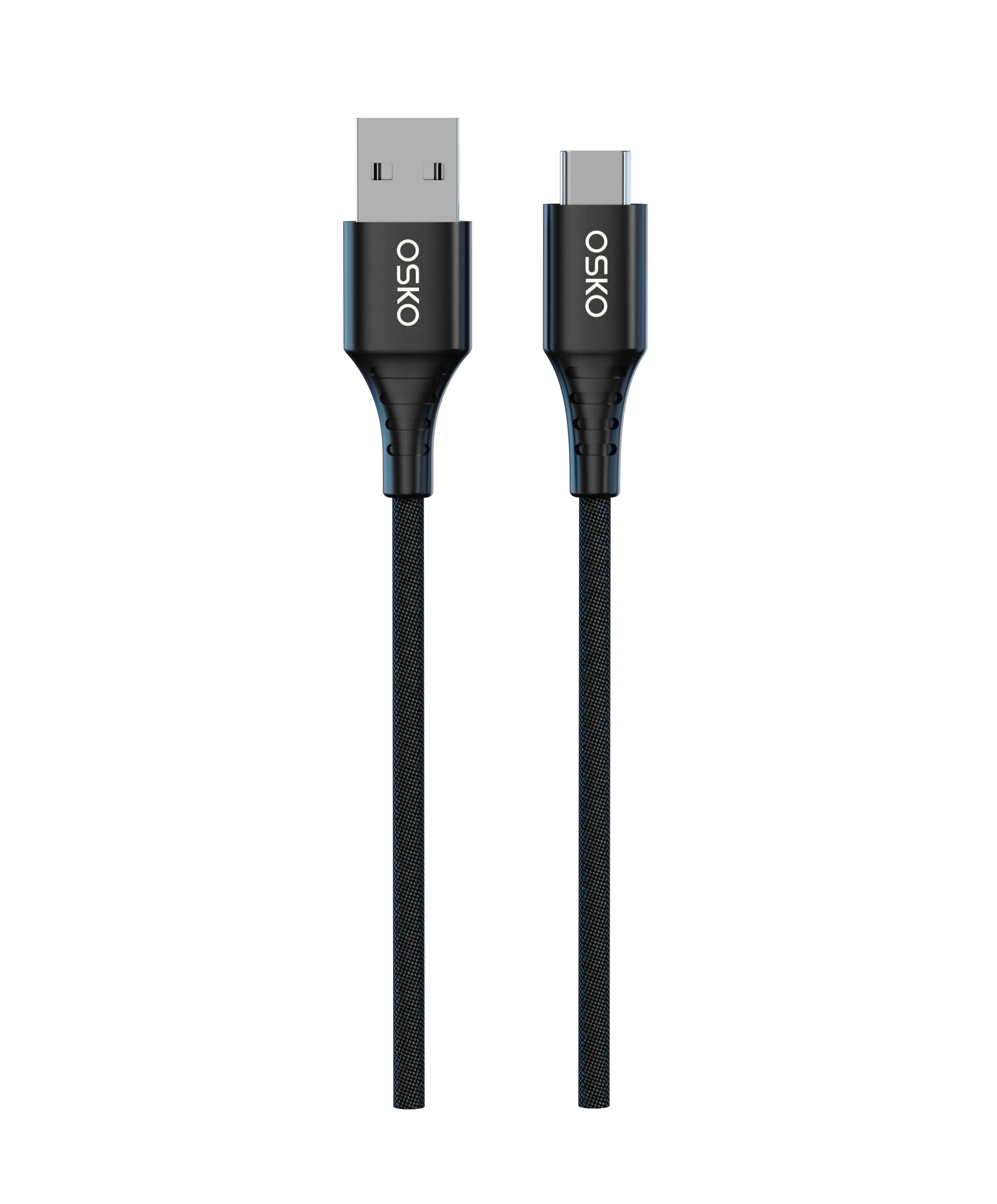
The most common USB printer cable used for desktop printers is the USB-A to USB-B cable.
This cable has two different connectors:
USB-A Connector
The USB-A side is the familiar rectangular connector that connects to most laptops, desktop computers, and USB hubs.
It has been widely used for decades because of its compatibility with computers and accessories.
USB-B Connector
The USB-B connector usually connects to the printer.
Its square-shaped design helps prevent incorrect connections and provides a stable interface for data transmission.
USB-A to USB-B cables are commonly found in:
Laser printers
Inkjet printers
Multifunction printers
Office printing systems
Scanner devices
For many traditional printers, this remains the most reliable wired connection method.
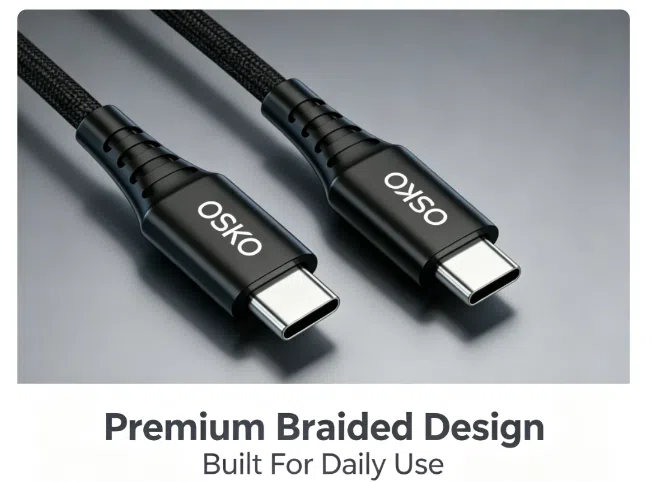
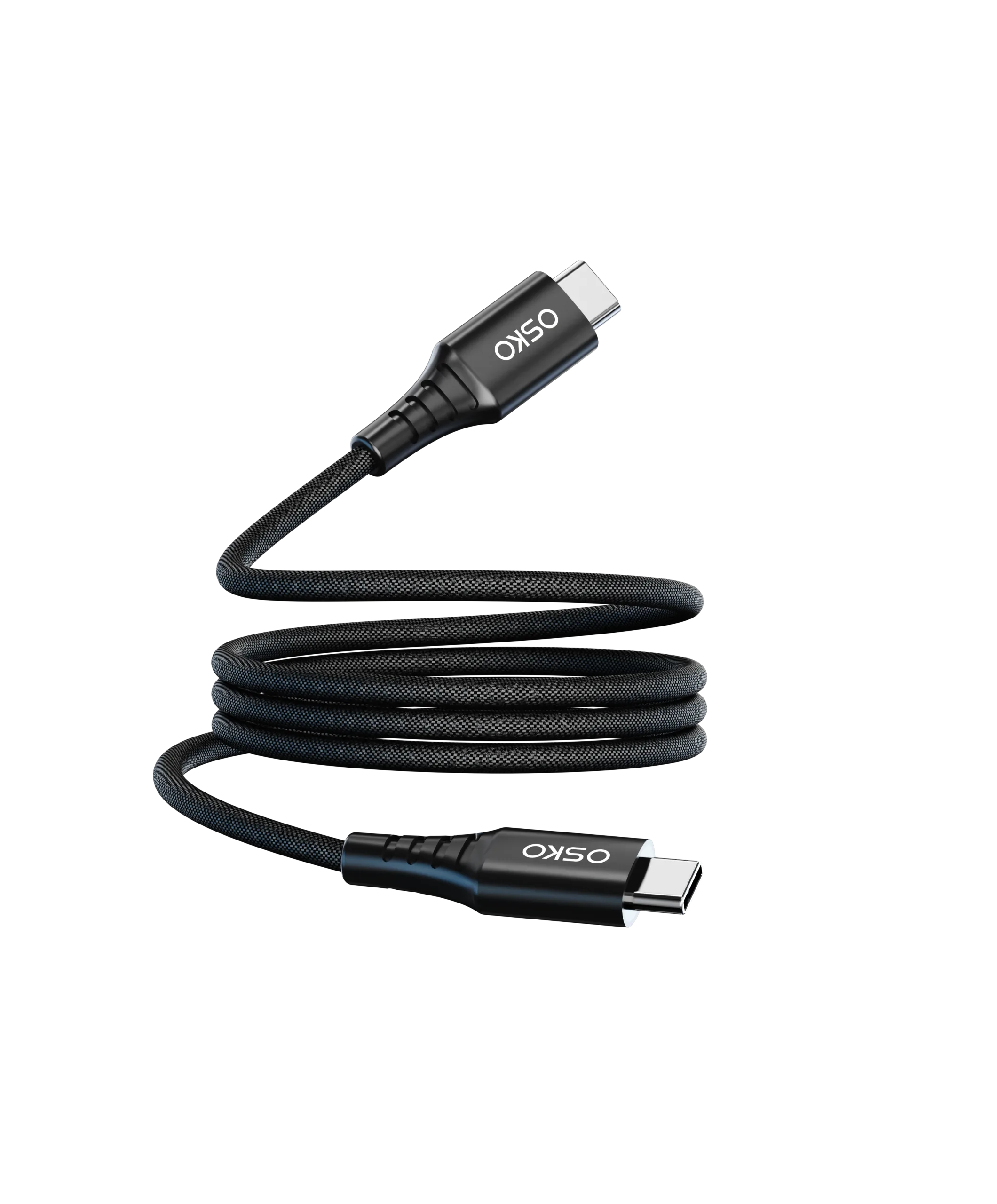
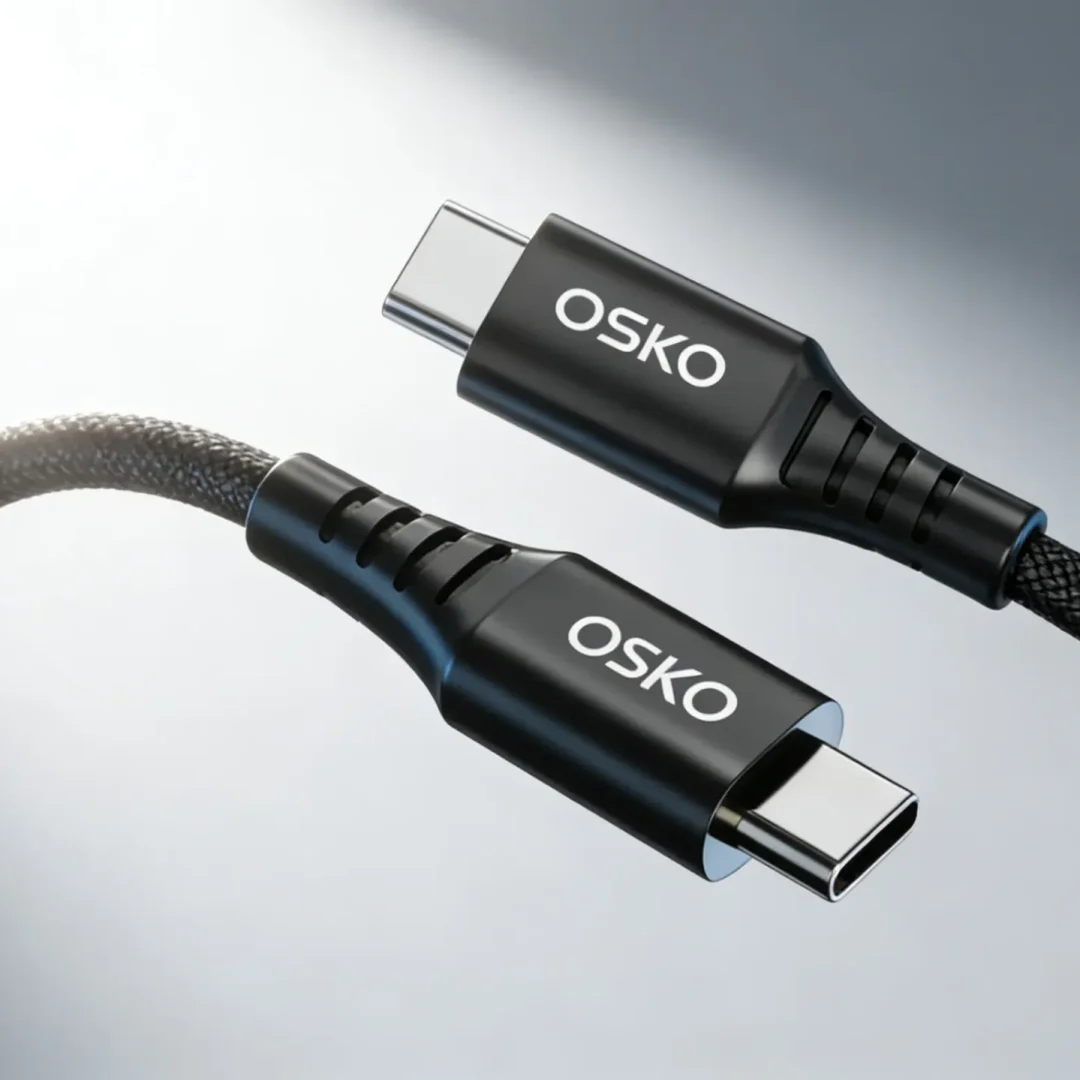
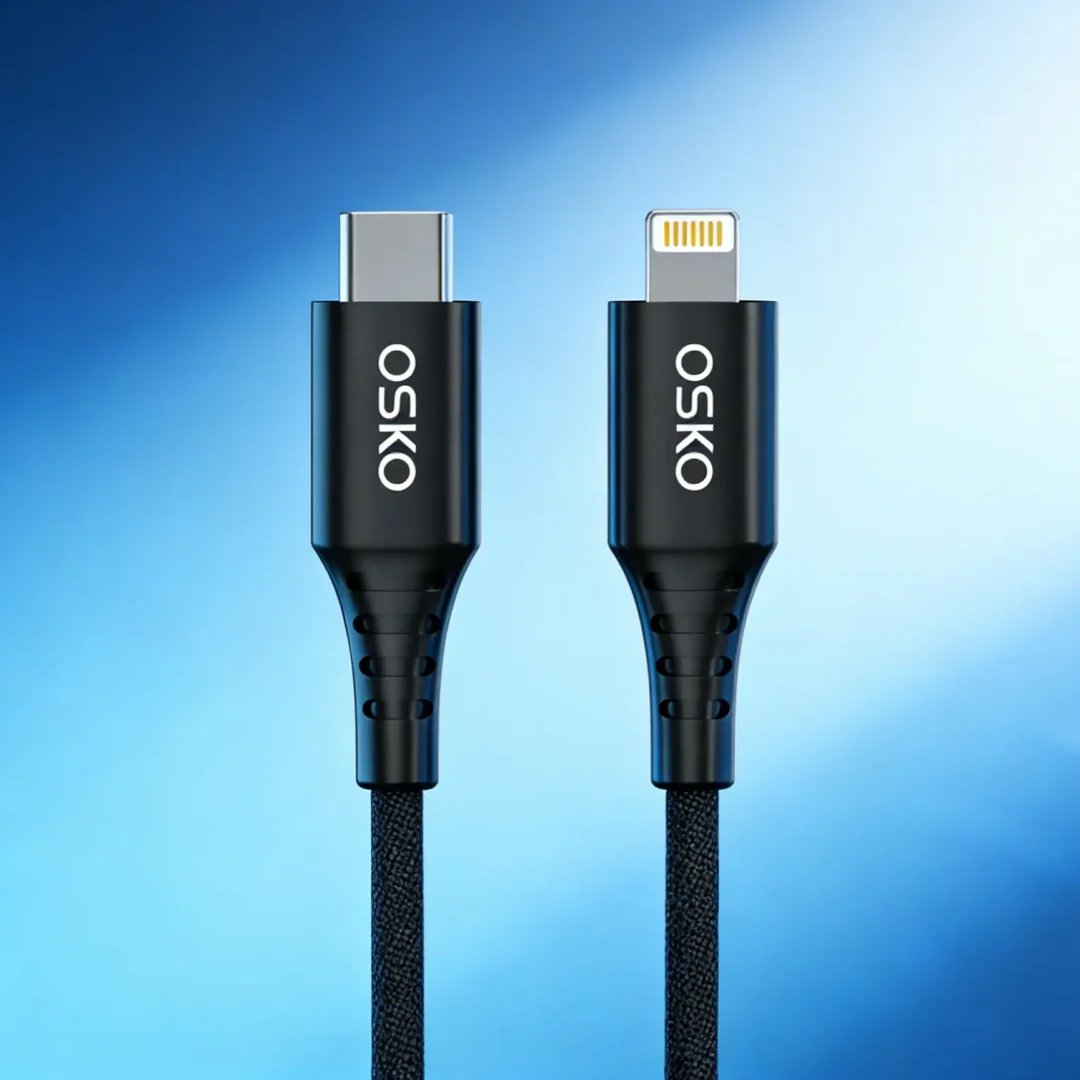
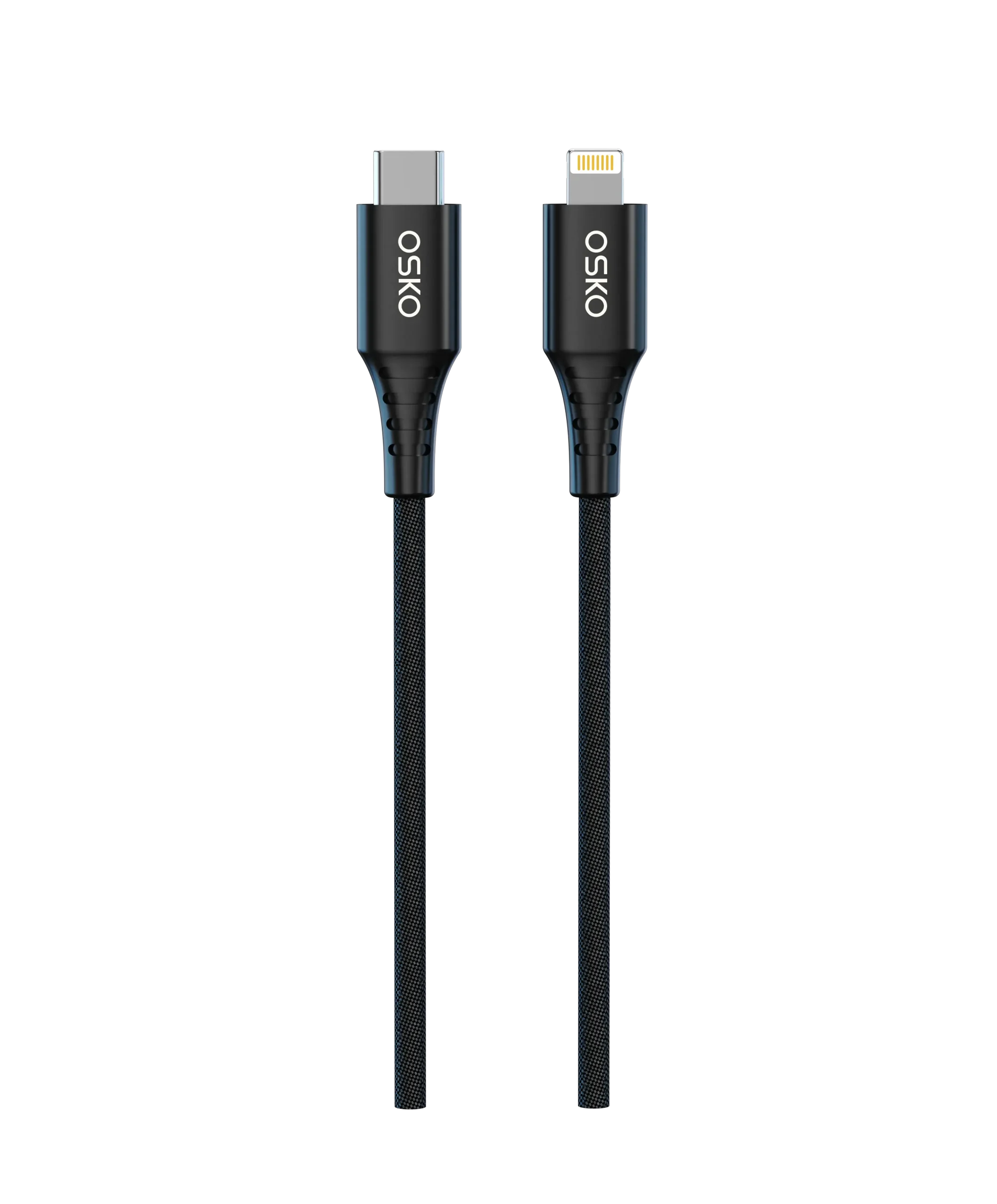
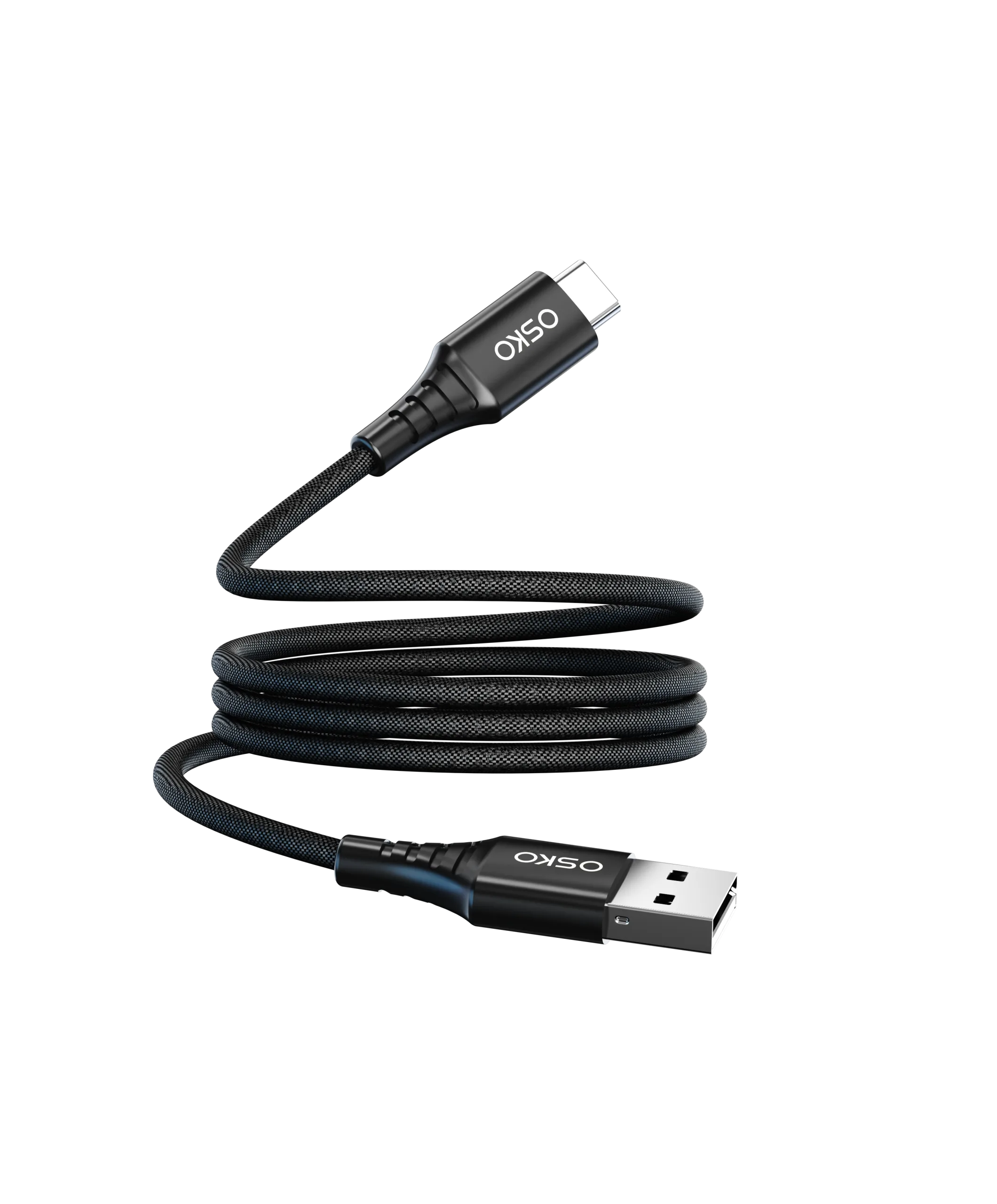
USB-C Printer Cable: The New Generation Connection Solution
As laptops become thinner and manufacturers remove traditional USB-A ports, USB-C has become increasingly common.
Modern laptops from many brands now rely heavily on USB-C ports for:
Charging
Data transfer
External displays
Accessories
For these devices, users may need a USB-C printer cable or a USB-C adapter solution.
A USB-C connection provides several benefits:
Reversible connector design
Easier plug-in experience
Compatibility with modern laptops
Support for higher-speed data transfer
However, users should always confirm printer compatibility before purchasing.
A USB-C port on a laptop does not automatically mean every printer supports USB-C directly.
USB Printer Cable vs Wireless Printing: Which Is Better?
Many modern printers support Wi-Fi printing, but wired USB connections remain popular because of their stability.
Advantages of USB Printer Connections
Reliable Connection
USB cables create a direct connection between the printer and laptop.
This avoids issues caused by:
Weak Wi-Fi signals
Network configuration problems
Router changes
Device pairing errors
Easy Setup
A wired printer connection usually requires only:
- Install the printer driver
- Connect the USB cable
- Select the printer
- Print a test document
For many users, this is faster than configuring wireless printing.
Better for Office Environments
Businesses that print large volumes of documents often prefer wired connections because they provide consistent performance.
How to Connect Printer to Laptop with USB Cable Step by Step
Setting up a printer with a USB cable usually takes only a few minutes.
Step 1: Check Printer and Laptop Ports
Before buying a cable, confirm the connection types.
Common combinations include:
Laptop USB-A port + Printer USB-B port
Laptop USB-C port + Printer USB-B port
Laptop USB-C port + USB-C compatible printer
Choosing the correct connector prevents compatibility problems.
Step 2: Install Printer Drivers
Drivers allow your laptop operating system to communicate with the printer.
To install drivers:
- Visit the printer manufacturer’s official support website.
- Search your printer model.
- Download the correct driver for Windows or macOS.
- Complete the installation process.
Some modern operating systems automatically install drivers after detecting the printer.
Step 3: Connect the USB Printer Cable
After installing drivers:
- Turn on your printer.
- Connect the printer-side connector.
- Connect the USB side to your laptop.
- Wait for device recognition.
Your laptop should detect the printer automatically.
Step 4: Add Printer Settings
If the printer does not appear automatically:
Windows:
Go to:
Settings → Bluetooth & Devices → Printers & Scanners
Select:
Add Device
macOS:
Go to:
System Settings → Printers & Scanners
Select your connected printer.
Step 5: Perform a Test Print
After installation:
Open a document
Select Print
Choose your printer
Confirm printing
If the page prints correctly, your printer-laptop USB connection is ready.
Common Printer USB Connection Problems and Solutions
Even with a correct cable, users may occasionally experience connection problems.
Printer Not Recognized by Laptop
Possible reasons:
Missing drivers
Damaged USB cable
Incorrect port connection
Printer software issues
Solutions:
Reinstall drivers
Try another USB port
Replace damaged cables
Restart both devices
Printer Disconnects During Printing
This is often caused by poor-quality cables.
A reliable USB printer cable should provide:
Stable internal wiring
Strong connector design
Proper shielding
Durable outer protection
Low-quality cables may cause intermittent connection problems, especially in busy office environments.
How to Choose a Reliable USB Cable for Printer Connection
When selecting a printer cable, many users focus only on connector type.
However, cable quality also affects long-term performance.
Important factors include:
Cable Length
Choose a length that fits your workspace.
Common options:
1 meter for desk setups
2 meters for office environments
3 meters for flexible installation
Longer cables require better signal control to maintain stable communication.
Data Transfer Capability
Printers require reliable data transmission.
A good printer USB cable should support stable communication between:
Laptop → Cable → Printer
This is especially important for:
Large documents
High-resolution printing
Office multifunction printers
Durability and Material Quality
A printer cable is often plugged in and removed repeatedly.
Better cable designs usually include:
Reinforced connectors
Flexible outer jackets
Strong internal conductors
Stress-resistant joints
These features help extend product lifespan.

Engineering Case Study: Improving USB Cable Reliability for Office Printing Systems
A European office equipment distributor working with multiple small businesses experienced frequent customer complaints about unstable printer connections.
The main issue was not printer hardware failure but inconsistent cable quality from different suppliers.
The distributor required:
Stable USB-A to USB-B printer cables
Multiple length options
Better connector durability
OEM packaging support
OSKO analyzed the application environment and optimized the cable structure with:
Improved shielding design
Reinforced connector stress points
More stable internal wiring
Customized length and packaging solutions
After switching to a more reliable cable solution, the distributor reduced replacement requests and improved customer satisfaction.
This example shows that a printer cable is not just a simple accessory. For businesses, it is an important component that affects daily workflow efficiency.
Why Choose OSKO for USB Cable Manufacturing?
OSKO specializes in designing and manufacturing reliable USB charging and data cables for global markets.
With OEM and ODM capabilities, OSKO supports:
Custom cable lengths
Logo printing
Packaging customization
Bulk production
Quality control requirements
For retailers, distributors, and businesses looking for a reliable USB cable manufacturer, selecting a factory with experience in cable engineering can help create more competitive products.
Final Thoughts: Choosing the Right Printer Cable Makes Printing Easier
Connecting a printer to a laptop with a USB cable is still one of the simplest and most reliable printing solutions available.
The key is choosing the correct cable type, installing proper drivers, and using a quality cable designed for stable data transmission.
Whether you need a traditional USB-A to USB-B printer cable or a modern USB-C solution, understanding your device requirements helps prevent connection problems.
A good printer cable should not only connect devices — it should provide reliable performance every day.
FAQ
Can I connect my printer to my laptop using a USB cable?
Yes. Most printers support USB connections. You need a compatible printer USB cable, such as USB-A to USB-B or USB-C adapter solutions depending on your laptop and printer ports.
What cable do I need to connect a printer to a laptop?
Most traditional printers use a USB-A to USB-B cable. Newer laptops with USB-C ports may require a USB-C printer cable or USB-C adapter.
Why is my laptop not detecting my printer through USB?
Common reasons include missing drivers, damaged cables, incorrect connections, or printer settings. Installing the correct driver and testing another USB cable usually solves the problem.
Does USB cable quality affect printer performance?
Yes. A poor-quality cable can cause unstable connections, printing interruptions, and device recognition problems. A durable USB printer cable provides more reliable data transmission.
Can I use a USB-C cable for a printer?
It depends on the printer model. Some modern printers support USB-C directly, while others require a USB-C to USB-B connection.
How long can a printer USB cable be?
Most home and office setups work well with cables between 1 and 3 meters. Longer cables require better construction to maintain stable performance.
Is USB printing better than wireless printing?
USB printing is often more stable because it creates a direct connection. Wireless printing offers more flexibility, but USB remains popular for reliable office and professional use.